Appointment Coordinator Contact Differs from Real Estate Agent Contact
This guide describes the use case where appointments are assigned to the responsible real estate agents in onOffice, but the contact information for appointment coordination sent to prospects belongs to an appointment coordinator – and accordingly the system emails for appointment bookings are always sent to the appointment coordinator.
In timum, properties are initially assigned the agent's standard contact profile automatically as the contact person for appointments. Since the agent's standard contact profile in this variant contains the contact details of the appointment coordinator, these contact details become effective automatically when the property is created.
Tip
Variant A
The optimal variant for extensive automated processes when creating new properties in timum. Real estate agents update their standard profile directly in their personal settings and enter the appointment coordinator's contact details there, e.g. name, email, phone (see Adjust contact details).
In this variant, the appointment coordinator's contact details are automatically active when creating a new property in timum, as they are stored in the agents' standard contact profile.
Variant B
Each real estate agent creates a specific contact profile for the respective timum team calendar, in which the appointment coordinator's contact information is stored.
Real estate agents therefore have in timum:
- a standard contact profile with their own contact details
- a specific contact profile in the provider calendar with the appointment coordinator's contact details
In this variant, when creating new properties in timum, the specific contact profile of the respective real estate agent for this provider calendar must be selected and configured once.
Start
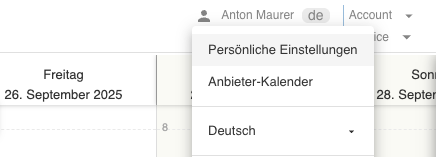
In timum, navigate to your Personal Settings or directly to Provider Calendar using the top right corner.
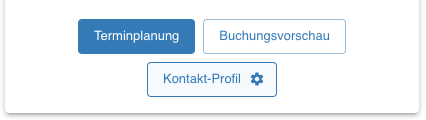
In your personal area in the top menu bar, under Provider Calendar you will find a tile for each provider calendar you are a member of.
In these tiles, your linked Standard Profile is initially displayed using the Contact Profile button.
A specific contact profile for the appointment coordinator in the respective team calendar is created with the following steps:
- Click the Contact Profile button in the respective team calendar
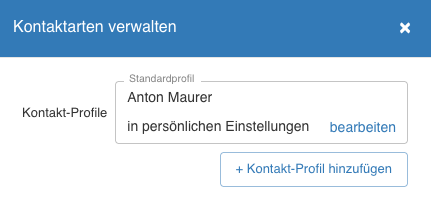
- Click the [ + Add contact profile ] button in the dialog
- Click the button with the three dots [ … ] to fill in the new contact profile.
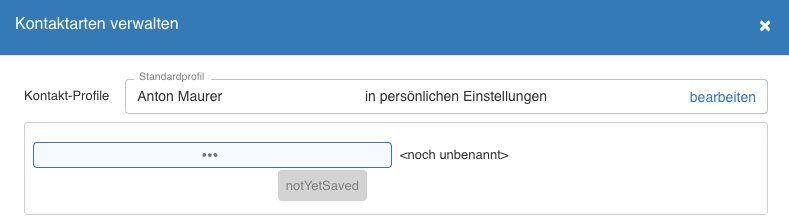
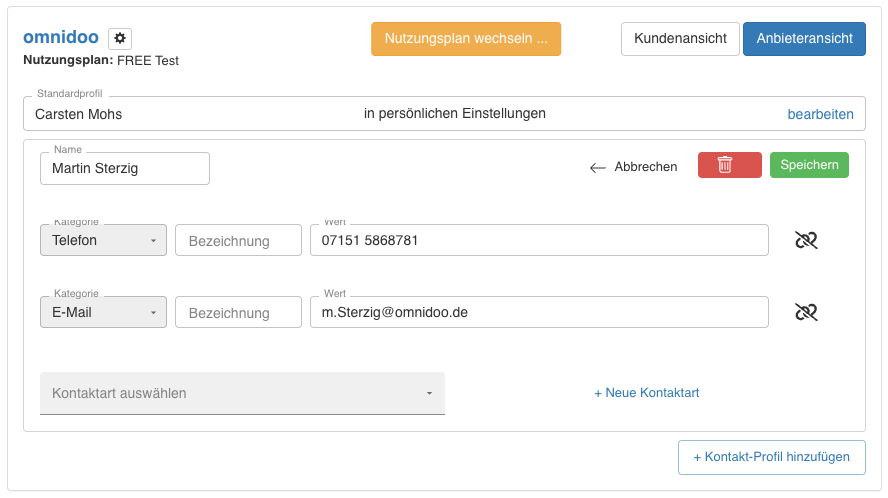
- Unlike in the standard profile, the name of the appointment coordinator is entered in the new contact profile.
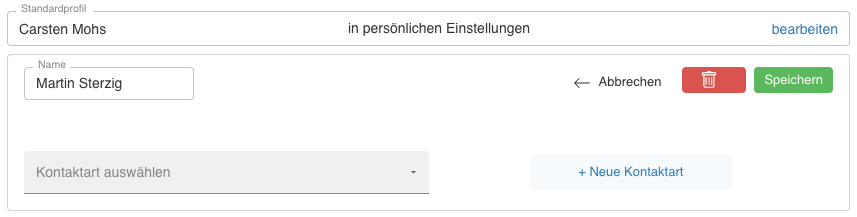
- Fields for the phone number and email are added using the [ + New contact type ] button.
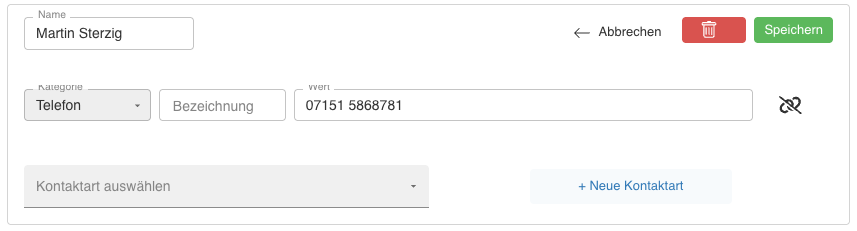
- Save the newly created contact profile. Afterwards, the new specific contact profile for the appointment coordinator is also displayed below the standard profile.